
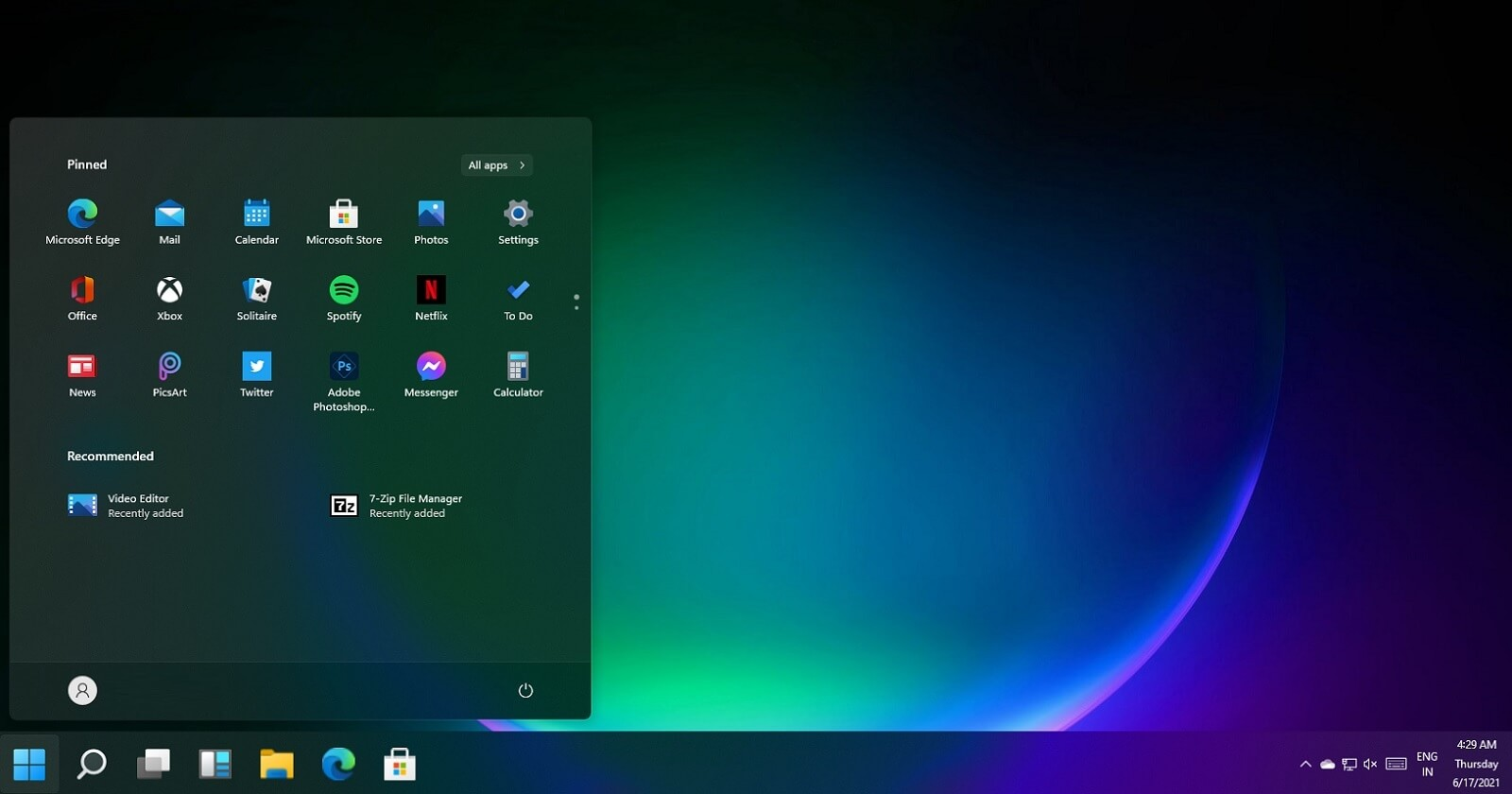
TaskbarX is a lightweight Windows tool used for centering taskbar icons, adding smooth animations, and improving desktop appearance. Like any customization software, keeping it updated is important to maintain compatibility with Windows updates and ensure smooth performance.
However, TaskbarX does not update in a fully automatic way for all versions, so users need to know the quickest and safest method to update it.
Step 1: Check Your Current Version
Before updating, it is useful to know which version you are using. TaskbarX usually displays version details inside its configuration folder or about section. Checking this helps you confirm whether a newer version is actually needed.
Most users compare their version with the latest available release, which is typically shown on the official download page or developer website.
Step 2: Download the Latest Version
The fastest way to update TaskbarX is to download the latest version directly from the official source. The portable version usually comes as a ZIP file, while the Microsoft Store version updates automatically.
According to official distribution information, the latest stable release is version 1.7.8.0, which remains widely used and compatible with modern Windows systems .
For users using the free portable version, downloading the new ZIP file is the main update method.
Step 3: Stop TaskbarX Before Updating
Before replacing files, TaskbarX should be stopped to avoid conflicts. You can do this by closing it from the system tray or opening the configurator and selecting the stop option.
Stopping the program ensures that no files are locked during the update process and prevents errors after installation.
Step 4: Replace Old Files With New Ones
Once the new version is downloaded, extract the ZIP file. Then copy the new files into your existing TaskbarX folder.
You do not need to uninstall the previous version. Simply overwrite the old files with the new ones. This is one of the reasons the update process is very quick and simple.
Your settings are usually preserved because TaskbarX stores configuration files separately from the main program files.
Step 5: Restart TaskbarX
After updating the files, restart TaskbarX using the configurator or by running the executable again. This allows the updated version to load properly and apply your existing settings.
Once restarted, your centered icons, animations, and transparency settings should work exactly as before, but now with improved stability or compatibility.
Microsoft Store Automatic Updates
If you installed TaskbarX from the Microsoft Store, updating is even easier. The Store version updates automatically in the background whenever a new release is available.
This method is the fastest because it does not require manual downloads or file replacement. Users simply keep their system connected to the internet and updates are handled automatically.
Why Updating TaskbarX Matters
Updating TaskbarX is important because Windows updates can sometimes change how the taskbar works. If TaskbarX is not updated, it may stop centering icons correctly or lose smooth animation behavior.
Updates usually include bug fixes, performance improvements, and better compatibility with newer Windows builds. Keeping the software updated ensures a stable and smooth desktop experience.
Common Quick Update Mistakes
Some users try to update TaskbarX by installing it in a different folder without removing the old version. This can sometimes cause duplicate processes or settings confusion.
Another common mistake is forgetting to stop the program before replacing files, which may lead to incomplete updates.
Following a clean overwrite method is usually the fastest and most reliable approach.
Conclusion
Updating TaskbarX quickly is a simple process. For portable users, it involves downloading the latest ZIP file, stopping the software, replacing old files, and restarting it. For Microsoft Store users, updates happen automatically in the background.
Keeping TaskbarX updated ensures better performance, improved stability, and compatibility with the latest Windows versions. By following a quick update process, users can continue enjoying centered taskbar icons, smooth animations, and modern desktop customization without interruption.
