
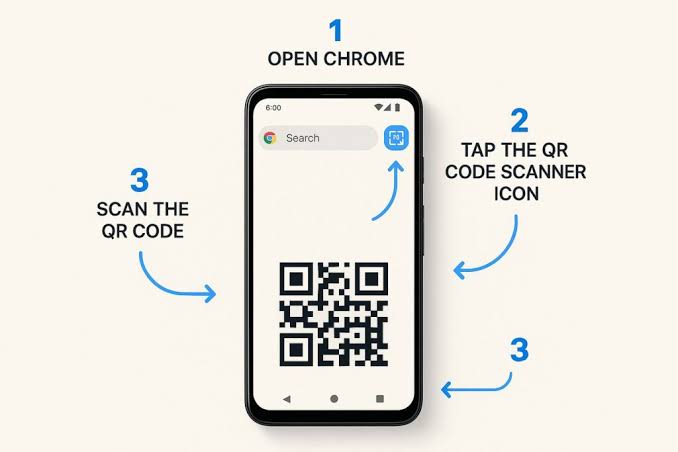
If you’ve ever tried to scan a QR code and run into trouble — maybe your phone’s camera didn’t recognize it, or the code was in a photo instead of right in front of you — you’re not alone. It happens more than people expect, and most of the time the fix is a lot simpler than people assume. You don’t need a special app. You just need the right kind of tool, and a couple of minutes to understand how it works.
This guide walks through everything in plain language: what a QR code actually is, why your phone sometimes struggles to read one, and how to scan a code using nothing but your browser.
What Is a QR Code, Really?
A QR code is that square pattern made up of black and white blocks you see on menus, posters, packaging, and receipts. QR stands for “Quick Response,” and the whole point of the code is to store information — usually a website link, but sometimes text, Wi-Fi details, or contact information — in a format a camera can read almost instantly.
Instead of typing out a long web address or searching for something by name, you just point a camera at the code, and it takes you straight there. That’s the entire appeal: it saves time and avoids typos.
Why Doesn’t My Phone Always Scan QR Codes Automatically?
This is one of the most common questions people run into, and there are a few different reasons it happens:
- Older phones — some budget or older Android and iPhone models don’t have built-in QR scanning in the camera app
- A setting that’s turned off — some phones need QR scanning enabled manually in the camera settings
- The code isn’t physically in front of you — if someone sends you a QR code as a photo or screenshot, your camera app usually can’t do anything with that
- Poor lighting or a damaged code — glare, blur, or a torn/dirty code can stop a scan from working, even on a newer phone
- You’re on a computer, not a phone — laptops and desktops don’t usually have a built-in QR scanner at all
The Easiest Fix: Use a Browser-Based QR Scanner
If your phone camera isn’t cooperating, or you’re trying to scan a code from an image rather than in person, the simplest solution is a website that scans QR codes for you — no app, no download, nothing to set up.
A QR scanner that works directly in your browser solves both problems at once. You can either point your camera at a code, the same way you would with a normal scanning app, or upload a photo if the code isn’t physically in front of you. Either way, the tool reads the code and shows you exactly what it contains within a second or two.
Step-by-Step: How to Scan a QR Code Using Your Browser
Here’s the process broken down simply, whether you’re on a phone or a computer:
- Step 1: Open your web browser (Chrome, Safari, Firefox — any of them work) and go to a browser-based QR scanning site
- Step 2: Choose how you want to scan — either allow camera access to scan a code in front of you, or select “upload image” if you already have a photo of the code saved
- Step 3: If scanning live, point your camera steadily at the code until it’s recognized — this usually takes one or two seconds
- Step 4: If uploading, select the image file from your phone or computer’s storage
- Step 5: Review the decoded result before doing anything else — this might be a link, a block of text, Wi-Fi details, or contact information
- Step 6: If it’s a link, tap or click to open it only after confirming it looks legitimate
Why Checking the Result First Actually Matters
This step gets skipped a lot, but it’s worth slowing down for. QR codes don’t show you where they lead until after you scan them, and that’s exactly what scammers have started taking advantage of. There have been real, reported cases of fake QR code stickers placed over legitimate ones — on parking meters, on posters, even on restaurant tables — that quietly redirect people to fake payment pages or phishing sites.
A good browser-based scanner shows you the decoded content — the actual link or text — before opening anything automatically. That gives you a chance to glance at it and make sure it looks right before you tap through. It only takes a couple of seconds, but it’s one of the easiest habits you can build to avoid a scam.
A Few Situations Where This Trick Comes in Handy
- A friend sends you a QR code as a photo in a text message or on social media
- You’re trying to scan a code printed in a PDF you’re viewing on a laptop
- Your phone is older and the camera app just doesn’t recognize QR codes automatically
- You want to double-check a code before scanning it “for real,” especially somewhere public
- You’re testing your own QR code before printing it on flyers, business cards, or packaging
Do You Need to Pay for This?
No — and this is worth knowing, because plenty of QR scanning apps in app stores try to charge a subscription or bombard you with ads for something that should be simple and free. A basic browser-based scanner does the same core job — reading a QR code and showing you what’s inside — without needing a payment, an account, or a download of any kind.
What About Privacy?
A common worry with any scanning tool is whether it’s storing your photos or tracking what you scan. A well-built browser-based scanner processes the image directly in your browser, meaning there’s no need to upload your photo to some server and store it there. If privacy matters to you — and it probably should — it’s worth looking for a tool that’s upfront about this rather than assuming it’s automatically the case.
Quick Recap
Scanning a QR code doesn’t have to involve downloading yet another app you’ll forget about in a week. A browser-based scanner handles both live camera scans and uploaded images, shows you the decoded content before opening anything, and works whether you’re on a phone or a computer. The next time your camera app won’t cooperate, or someone sends you a QR code as a picture instead of the real thing, you’ll already know exactly what to do.
It’s a small trick, but it’s the kind of thing that saves you a genuinely annoying moment more often than you’d expect — and now that you know it exists, there’s really no reason to go back to fumbling with a dedicated app just to read a simple square of black and white pixels.
Common Questions People Ask About QR Scanning
A few quick answers to things that tend to come up once people start using QR codes more regularly:
- Can a QR code contain a virus? No — a QR code can only store data like text or a link. It can’t run anything on your device by itself. The risk comes from where a link leads, not from the code itself.
- Do QR codes expire? It depends on the type. Some codes have a fixed destination that never changes. Others are set up so the business can update where they lead later, which means the same printed code might take you somewhere different than it did a few months ago.
- Why does my camera sometimes take a second to recognize a code? Usually it’s lighting, angle, or distance. Try holding your phone steady, making sure there’s enough light, and getting a bit closer if it’s not scanning right away.
- Is it safe to scan random QR codes I find in public? Mostly yes, but it’s smart to be a little careful, especially with codes on things like parking meters or flyers where anyone could have placed a sticker over the real one. Checking the decoded link before opening it is the easiest way to stay safe.
A Simple Habit Worth Building
Once you get used to previewing a QR code’s content before opening it — instead of letting your phone jump straight to a website — it barely takes any extra time at all. It becomes second nature pretty quickly, the same way most people already glance at a sender’s email address before clicking a link inside a message. QR codes are just catching up to that same everyday habit of pausing for half a second before trusting something automatically.
Bringing It All Together
QR codes are everywhere now, and most of the time they work perfectly fine without you thinking twice about them. But when they don’t — when your camera won’t recognize one, or someone sends you a code as a photo instead of the real thing — it helps to know there’s a simple, free backup option sitting in your browser the whole time. No app, no signup, no waiting around. Just open a page, scan or upload, and you’re done.
Bookmark a browser-based QR scanner the next time you run into a code that won’t cooperate, and you’ll likely never need to think about downloading a dedicated scanning app again.
