
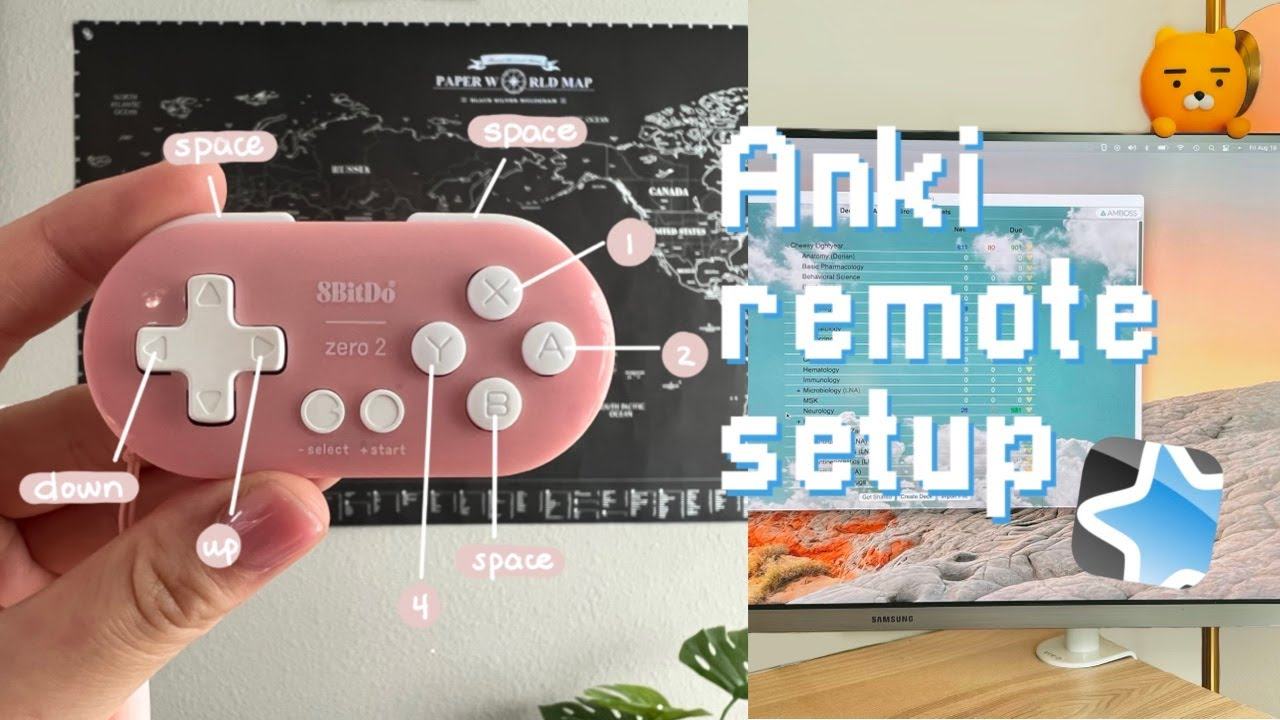
To switch a MODI Anki remote between a computer and phone, start by treating the move as a fresh Bluetooth pairing. Forget the saved MODI or Anki remote entry on the device you are leaving, then pair again in the mode required by the next device. Desktop review usually uses Keyboard Mode, while phone and tablet review normally uses Switch Mode because mobile Anki apps expect gamepad-style input configuration.
The important detail is that switching devices often also means switching connection modes. MODI remembers its last-used mode when you press Home to wake and reconnect, but a computer and phone may not need the same profile. When moving from macOS, Windows, or Linux to iPhone, iPad, or Android, use a deliberate forget-and-repair process instead of expecting every saved pairing to remain interchangeable. The handoff is simple once the modes are kept separate. Students evaluating this approach can check Anki remote for desktop and mobile for current mode, compatibility, and setup information before changing their review routine.
Modes
Keyboard Mode is the standard desktop mode for macOS, Windows, and Linux when you want MODI’s preset review inputs to act like keyboard commands. In this setup, no desktop Anki add-on is required for the default workflow. You open the computer’s Bluetooth settings, hold A + Home for one second, and select the MODI connection. After a successful Keyboard Mode connection, the center LED becomes solid green, which confirms the remote connected in that profile.
Switch Mode is the usual choice for phones and tablets because it presents MODI as a controller-style device for configurable app actions. For AnkiMobile on iPhone or iPad and AnkiDroid on Android, this is the standard mobile setup path. Open Bluetooth settings, hold Y + Home for one second, and select the MODI connection. A solid blue center LED means the Switch Mode pairing succeeded. MODI is independent from AnkiMobile, AnkiDroid, and the device operating systems.
Desktop
When you are moving MODI to a computer, decide whether the desktop should use simple preset commands or custom remapping. For preset desktop use, choose Keyboard Mode and pair from the operating system’s Bluetooth settings. MODI can then send common review inputs without installing the optional desktop add-on. Desktop Anki itself supports keyboard controls such as Space or Enter for revealing answers or choosing Good, plus number keys for available answer buttons.
If you previously used the remote with a phone, first remove its old saved entry from the phone’s Bluetooth list and from the computer if it already appears there. Then put MODI into Keyboard Mode with A + Home and pair from the computer. The remote may reconnect to its last-used mode when woken with Home, so starting clean helps prevent a Switch Mode mobile pairing from being mistaken for a desktop Keyboard Mode setup.
Mobile
When you are moving MODI from a computer to a phone, Switch Mode is the standard path. Forget the old MODI entry on the computer and remove any saved MODI or Anki remote entry on the phone before pairing again. Then hold Y + Home for one second from Bluetooth settings and select the device. The blue center LED confirms the connection profile that mobile Anki workflows normally need for gamepad-style action assignment.
After pairing, configure the app rather than assuming the desktop button behavior will carry over unchanged. In AnkiMobile, actions are assigned under Settings, Review, and Gamepads. In AnkiDroid, use Settings, Controls, and Set Key Binds. AnkiDroid can show X-Y-B-A inputs as Y-X-A-B because of a third-party display mapping issue; that is a label mismatch in the menu, not proof that the assigned commands cannot work.
Repairing
The most repeatable handoff is to forget, choose the intended mode, and pair again. On the device you are leaving, remove the saved MODI connection so it does not automatically claim the remote when it wakes. On the device you are joining, remove any older MODI or Anki remote entry too. This clears stale Bluetooth records that can preserve the wrong mode, wrong device relationship, or older app configuration after a previous setup.
Then pair only after deciding the target mode. Use A + Home for one second when the next device is a desktop using Keyboard Mode. Use Y + Home for one second when the next device is a phone or tablet using Switch Mode. Wait for the center LED to confirm the mode: green for Keyboard Mode, blue for Switch Mode. If the device list shows multiple old-looking entries, remove them before trying again.
Reconnection
Once MODI is paired correctly, pressing Home wakes the remote and asks it to reconnect in the last-used mode. That behavior is useful when you return to the same computer or phone, but it can be confusing after a device handoff. If the last successful connection was Switch Mode on a phone, waking the remote does not automatically turn it into the desktop Keyboard Mode pairing you may now want.
MODI also sleeps automatically after about 2.5 minutes without a Bluetooth connection or after about 5 minutes of inactivity. Holding Home for 3 seconds manually sleeps or turns off the remote. These power behaviors do not replace Bluetooth pairing steps. If a device cannot find the remote after sleep, wake it, confirm the intended mode, and review saved Bluetooth entries before assuming the app itself is the problem. Battery state can also affect a troubleshooting session.
Troubleshooting
If MODI connects but buttons do nothing after a fresh pairing, restart the host device and try again before changing multiple settings. A Bluetooth connection only confirms that the operating system accepted the device; the review app may still need the correct input type or action mapping. On desktop, confirm whether you intended Keyboard Mode presets or the optional MODI add-on workflow. On mobile, confirm that the app is listening for gamepad-style inputs in Switch Mode.
Avoid diagnosing every failed handoff as a remote fault. Saved pairings, host-device Bluetooth state, battery level, app configuration, and mode choice can all affect the result. The clean sequence is still the same: remove old entries, choose Keyboard or Switch Mode for the destination, pair once, then configure the review app where needed. MODI is an independent accessory, so behavior inside Anki, AnkiMobile, and AnkiDroid remains governed by those apps’ own control settings.
